Documentation
Install qTrace and start capturing provenance in minutes
A short guide for anyone using QuPath — no prior coding or compliance background required. Whether you run analyses, review them for a regulated lab, or build on top of qTrace, this page gets you started.
🚀 Getting Started
Requirements: QuPath 0.6 or 0.7.x. Java is already bundled with QuPath — nothing extra to install there.
Install qTrace Core (free)
qTrace installs through a single small file, the qTrace loader. It downloads the qTrace modules — signed, so only genuine qTrace code ever runs — and keeps them up to date, on Windows too.
From the QuPath extension catalogue (recommended)
- In QuPath, open Extensions > Manage extensions and click Manage extension catalogs.
- Paste
https://github.com/RomainTourte/qTrace-coreand click Add — once per workstation. - qTrace now shows in the extension list: click its green + to install it, then restart QuPath.
- A window "qTrace needs to download its modules" opens: click Install. qTrace starts right away, no second restart — check Extensions > QTrace, the panel title reads "qTrace Core".
Or by hand
- Download
qtrace-loader.jarfrom the latest release. - Drag it onto the QuPath window, or copy it into your QuPath extensions folder:Linux
~/QuPath/v0.7/extensions/macOS~/Library/Application Support/QuPath/v0.7/extensions/Windows%APPDATA%\QuPath\v0.7\extensions\With QuPath 0.6, use
v0.6instead ofv0.7. Can't find it? In QuPath, go to Edit > Preferences > Extensions directory. - Restart QuPath, then click Install in the "qTrace needs to download its modules" window.
The modules live in an extensions/qtrace/ subfolder as .qtjar files — leave them there; QuPath itself only sees the loader.
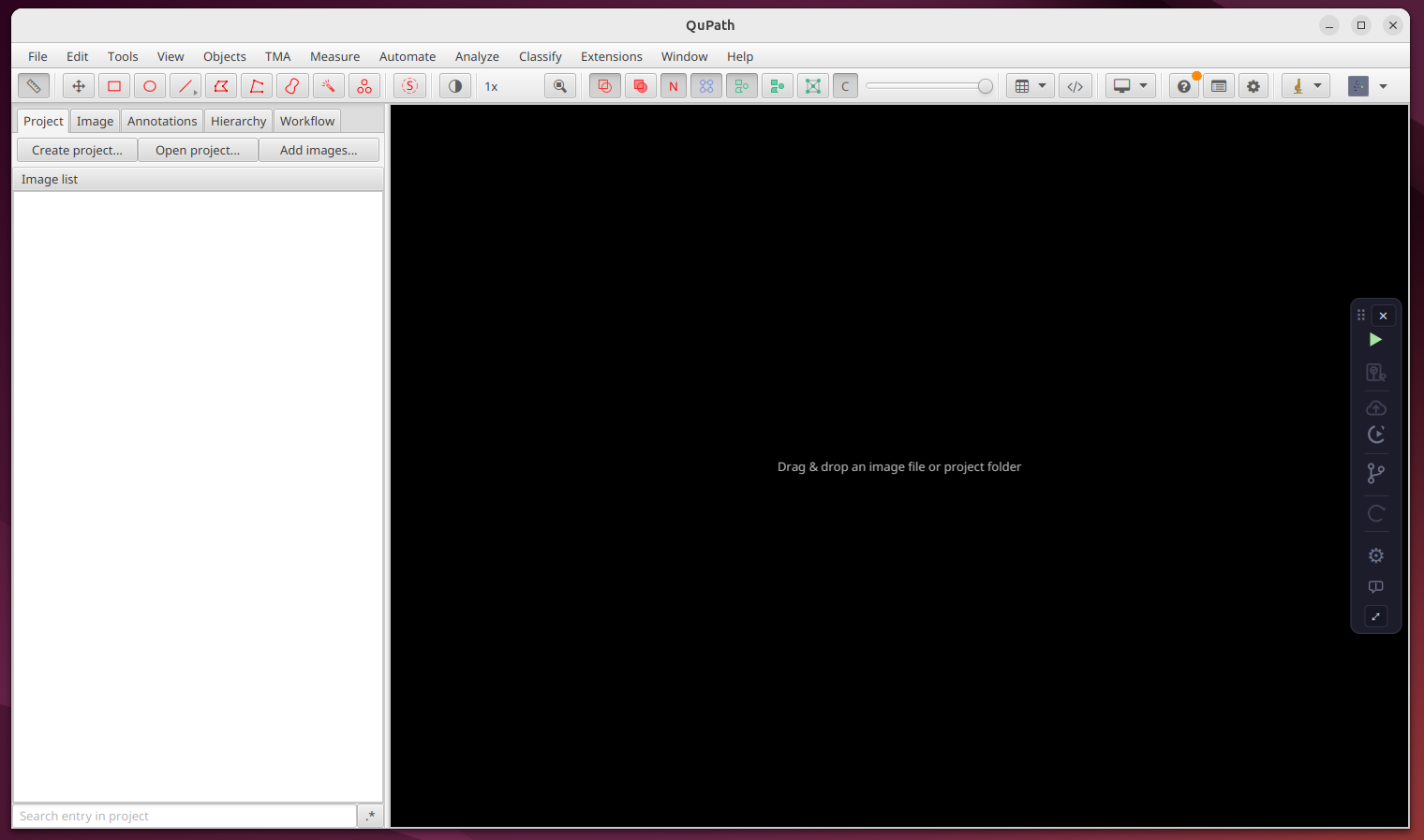
Replay
Re-run a recorded analysis from a compact player over the image, to prove it reproduces — each replayed image gets its own .qtrace.
▾
Replay
Re-run a recorded analysis from a compact player over the image, to prove it reproduces — each replayed image gets its own .qtrace.
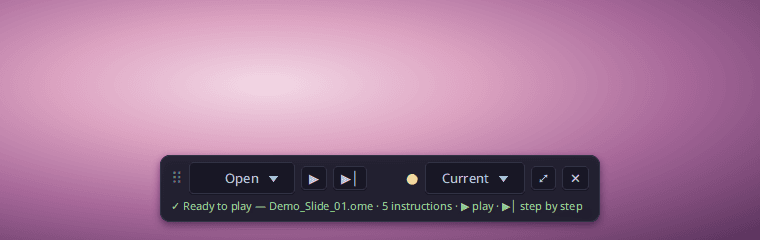
The mini-player
↻ Replay (panel, Workspace group — there as soon as the Player module is installed, with or without a licence) opens a small floating pill over the image, at the bottom centre the first time. Clicking ↻ Replay again closes it (except while a replay is running):
- ⠿ — grab the pill to move it anywhere over the image; its position is remembered across sessions. The rest of the image stays clickable. Its left and right borders widen or narrow it (360 px minimum); the width is remembered too.
- Loading — a spinner turns while the source
.qtraceloads, then the status line shows, in green, "✓ Ready to play — … · 12 instructions". - 📂 Open — "Local .qtrace file…" (file chooser) or "qtrace.ca ID or share link…" (one field: paste a
qtc_…or a link, then Enter). When your licence includes a module that offers records (for instance Training…, your organization's training catalogue), its entry is added to this menu — and, in the Player window, a button of the same name appears right of 📂 Browse. Without such a module, nothing changes. - ▶ plays the replay (⏸ pauses it, ▶ resumes where it stopped); ▶│ runs a single instruction.
- ● — the replay's overall compatibility (🟢/🟡/🔴); click it for the pre-flight details (extensions, models).
- Current ▾ — the replay applies to the image open when you click; "All project images" (shown as "All (N)") plays it as a batch on every image of the project.
- ⤢ opens the full Player (below) on the same replay, keeping the position; ✕ closes the pill (unavailable while running).
- The line under the buttons shows the instruction running ("⏳ Step 3/12 · … — running…", with "Image 2/5" in a batch), then a closing message: "✓ Replay finished — 10/12 instructions applied (1 failed, 1 unchecked) · .qtrace written".
- Failed instruction: playback pauses on that step ("❌ Step 11/12 failed: …"). ▶ carries on with the next instruction, ⤢ shows the full error.
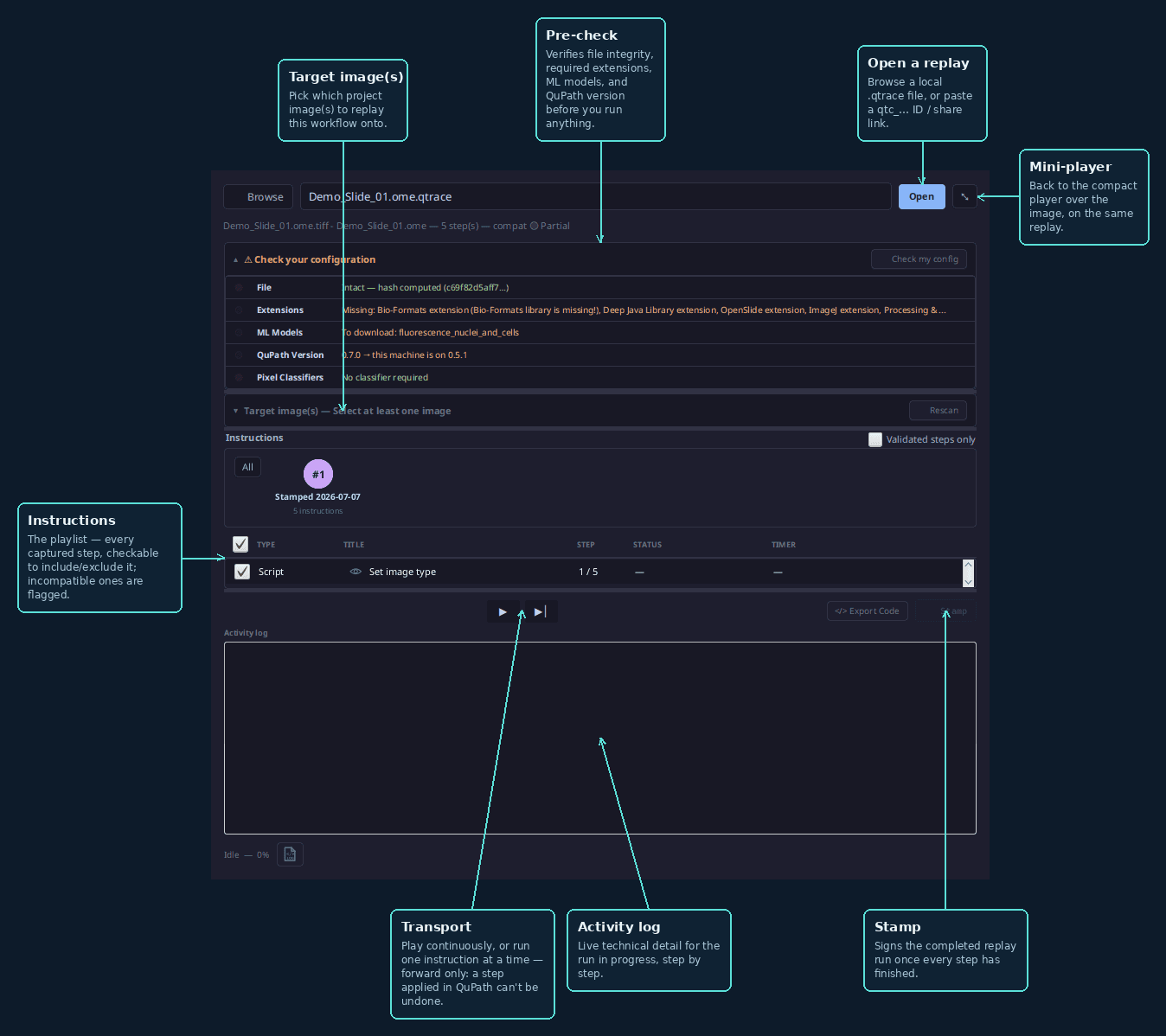
The full Player
- From the mini-player, click ⤢ to open the full Player; its ⤡ button (top right) closes it and goes back to the pill, on the same replay.
- Open a replay — browse a local
.qtracefile, or paste aqtc_…ID / share link, then click Open. Aqtc_…ID opens only if you may read that record: it is yours, or its owner shared it with you (portal › Shares). Knowing the ID is not enough — the Player then answers "You don't have access to this record. Ask its owner to share it with you.". An anonymous share link (…/share/g/…) opens with no other right, unless it is anonymized: it then shows the record on the portal, but cannot be replayed. The.qtcertcertificate (/api/verify/qtc_…/qtcert), the/verify/qtc_…page and its verdict follow the same rule: they open only for whoever may read the record. Public verification is in preparation: any other visitor sees the Public verification is coming soon page, whether the ID exists or not. The certificate is whole for whoever may read the record's files. An anonymized link gets its proof (qtc_….proof.json, formatlegacy/1): the signed fields and the signature, without the stamped session, the image name or the case ID (case_id, which may name a patient). Without the case ID, this proof is not enough to check the signature offline: the laboratory gives it to the auditor who needs it. Who held the key and the Bitcoin timestamp are checked on the record's page, or in the exit bundle withqtrace-verify check. Each open by ID or link is logged: the owner sees, on the record's page (portal › Workspace), the Opened in the QuPath player card — who, with which access, when. It shows the record was opened, not that the replay was run; a local.qtracefile is not listed. Aqtc_…certificate covers one session: the one that was stamped. Its.qtracestill carries the image's whole history (earlier sessions, unstamped work). So the Player replays the certified session only by default — the same steps as "Scripts executed" on the portal when its session is picked there — and says so under the field ("certified session 3/3"). The image's sessions are drawn above the playlist, like a workflow's packets: one numbered circle per session, in order, with what it is (Certified for the session the certificate covers, Stamped for another stamped session, Unstamped for unstamped work), its day and its number of instructions. The filled circle is the one that will be replayed; the others are dashed ("not played"). Click a circle: that session only. All button: the image's whole history, each instruction once. A local.qtraceopens on its whole history. During the replay the circle is ringed in blue, then turns green (✓), or red if an instruction failed. - Target image(s) — pick which project image(s) to replay this workflow onto (a replay can target several images at once, as a batch). Select all button to check every project image in one click.
- Instructions — the playlist: every captured step is a row (Type / Title / Step / Status), checkable to include or exclude it from the replay. The title is the step's name as it was recorded ("Set image type", "Script: my_script.groovy", "Manual annotation: Rectangle"), as in "Scripts executed" on the portal. The eye before the title unfolds, under the row, the script exactly as it will be run (read-only, copyable); a second click folds it back. A per-step compatibility badge (🟢/🟡/🔴, full catalogue in
CLAUDE.md) flags a missing extension or a 🔴 Not scriptable action (e.g. SAM, interactive) before anything runs. A Display settings type replays QuPath's Brightness & contrast dialog (per-channel min/max, color, visibility, gamma) — useful for reproducing a figure's exact visual appearance, not just the underlying analysis results. A Class list type replays the changes made to the class panel (Annotations tab: Add/Remove › Add class, Remove class, Populate from…): each added class is created again with its colour, at the top of the playlist, before the instructions that use it. A step marked ◌ (orange title) was only ever recorded in unstamped sessions: it documents the work but was never validated by a stamp. The Validated steps only box (right of the Instructions title) unchecks all of them at once; unchecking it puts them back. The exported script flags them with a// [unstamped] session …comment, and theqtrace-replaycommand line takes--validated-onlyto leave them out. An instruction its author took out of the replay (the − button of the [⑃ Version(s)](08-graphe-de-version.md) window) is never run — not step by step, not in continuous play, not in batch — and is left out of the exported script. By default it is not listed; with Hide the instructions taken out of the replay in the Player unchecked in [Settings › Preferences](04-parametrer.md), it shows greyed out, its box unchecked and locked, status "Excluded by the author" — to check what was left out. The replay follows the list strictly in order: clicking a row doesn't move playback; only a failed ❌ row is clickable, to show the full error. - Transport — step through the replay one instruction at a time (▶│), or play it continuously
(▶). There is no going back: a step already applied to the image can't be undone in QuPath.
When the run ends on each target image, qTrace writes that image's `.qtrace`: it holds
exactly the instructions that ran successfully (a failed or unchecked step is left out), plus a
replayed_fromlink to the source.qtrace. On a never-opened image, the steps QuPath adds by itself on opening (e.g. "Set image type") are excluded; on an image that already had a history, the replayed instructions are appended to it. - Stamp — once every step has finished, signs the completed replay run with your qTrace certificate.
Without a certificate the button stays greyed out (its tooltip says why) and the log ends at once with the unsigned ReplayStamp block: its
payloadsums up the run (replayed recipe, result, steps, workstation), with no value as proof. - Activity log — live technical detail for the run in progress, step by step. Every run also writes a log (logs folder, set in Settings › Paths) that names the workstation (
machine); the trace the replay produces points back to it. The Upload can send it with the trace — it is proof of work — according to Settings › Preferences › Upload, and the portal shows it in the Execution logs card of the trace's page.
Version graph
A revision tree of every analysis and re-validation, git-like.
▾
Version graph
A revision tree of every analysis and re-validation, git-like.
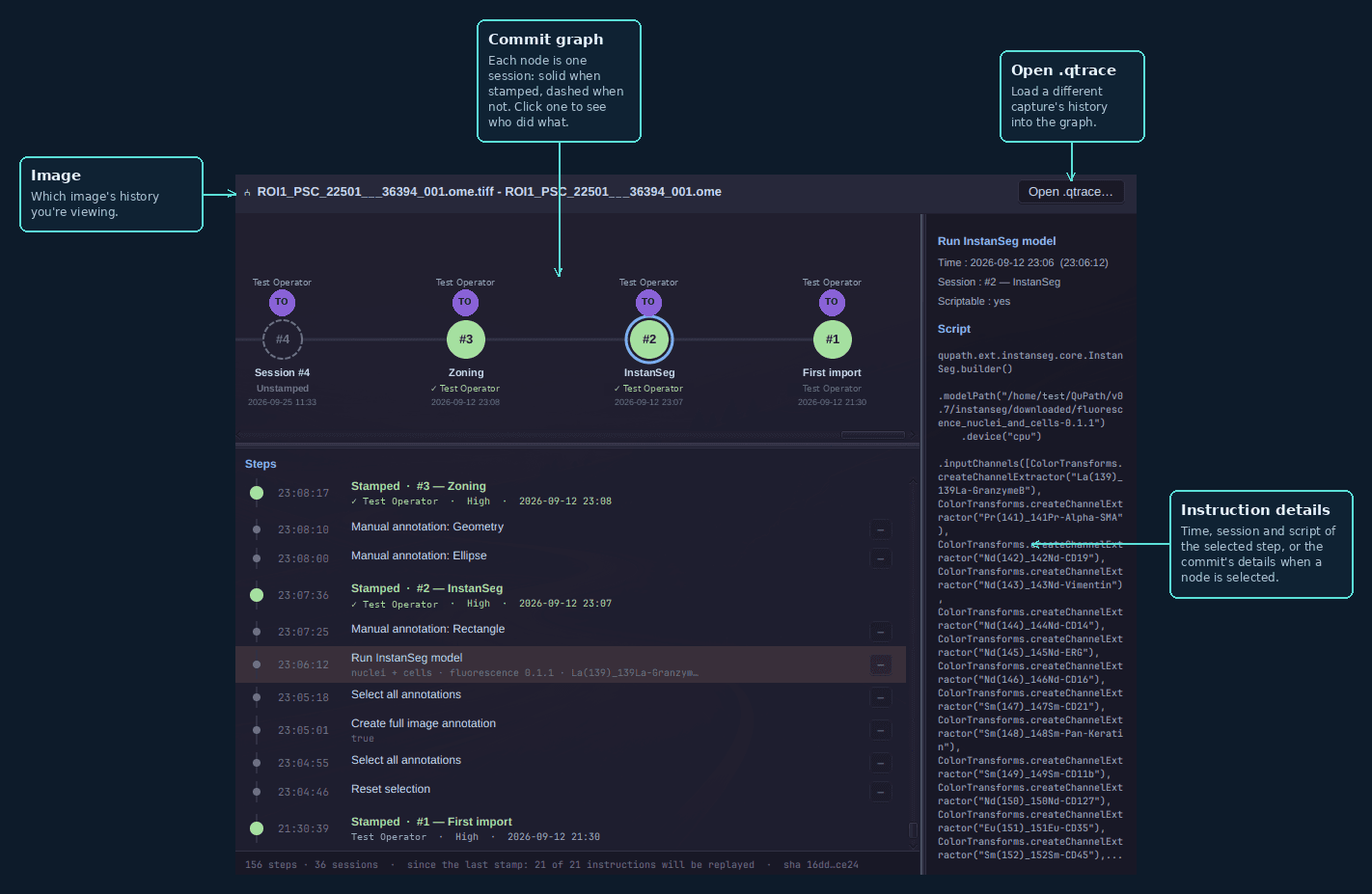
8. Explore the version graph
- Click ⑃ Version(s) in the panel (Compliance) to open the graph for the current capture.
- Image — the header shows which image's history you're viewing.
- Open .qtrace… — loads a different capture's history into the graph.
- Commit graph — each node is one session, from the latest (left) to the oldest (right); click one to see who did what: the
timeline below then lists only that session's steps (the footer says so); click beside the
nodes to list everything again. A stamped session
is a filled disc (colour = confidence); an unstamped session (saved automatically when an
image is closed or switched without a stamp) is a hollow dashed circle marked Unstamped:
the work is recorded, not validated. When the window shows the image open in QuPath, a last
In progress node stands for the capture not saved in the
.qtraceyet — what the next stamp will carry. So the window also opens before the very first stamp, on that single node. The window updates by itself: every newly captured action joins the In progress node within a second, and the list stays on its top while you are there. When you open another image in QuPath, the window switches to that image's history. - Steps — below the graph, the timeline lists every captured action, latest at the top: one
grey dot per step, with its time, command and a line saying what it does rather than how: what
InstanSeg detects and on which channels (
nuclei + cells · fluorescence 0.1.1 · DNA-2, ICSK2), which classifier produces what (tumor_stroma → annotations), the stain vectors (H 0.651 0.701 0.290 · DAB …), otherwise the values passed to the command — never a full path. Pixel classifier training (classes, resolution, model) and Warpy alignment (aligned image → reference image, transform), which QuPath does not log as steps, appear at their time too. Each session opens on its milestone, its steps below it (so those of the capture In progress are added right under its milestone, at the top of the list): a dot in the confidence colour when it was stamped (validator, ✓ when signed), a hollow dashed circle when it is Unstamped. Each session lists only what was done in it: steps inherited from an earlier session are not repeated. Steps excluded from replay or deleted are dimmed and labelled. The footer shows the number of steps and sessions and the image's short hash. Click a step to see its command, time, session and script on the right; click a milestone (or a graph node) to show the commit — both views stay in sync. - − / + — to the right of every replayable instruction, − takes it out of the replay and + puts it back. An instruction taken out stays in the trace (dimmed row, labelled "taken out of the replay", and the detail on the right says who did it and when), but the Player never runs it and it is left out of replay scripts. If you touch nothing, every instruction is replayed. The choice is about the instruction: it applies to all its occurrences in unstamped sessions, and the capture in progress follows. The button sits on the row of the session the instruction was made in. Anything done since the last stamp stays editable, whoever recorded it; on a stamped session — or an unstamped one a later stamp has validated — the button is greyed out — the stamp freezes the choice, and changing it in the file afterwards is reported as an edited trace. The footer says how many instructions will be replayed since the last stamp, unstamped sessions included ("since the last stamp: 11 of 12 instructions will be replayed") — or for the one session shown when a node is clicked. qTrace does not check whether a later instruction needed the one you took out: that call is yours. Steps with no script (e.g. a manual annotation) have no button: they are not replayed anyway.
- Commit details — for the selected commit: Validation (Stamped / Unstamped), validator, confidence, scope, categorized actions, and how many steps it inherited (pre-tracking) from the previous contributor.
- Width of the right panel — drag the vertical bar between it and the graph and list to widen or narrow it (to read a long script, for instance). It keeps its width when you resize the window.
⚙ Settings
Open it from the ⚙ gear, top-right of the panel — seven sections in the sidebar, covering everything from your validator identity to where qTrace writes its files.
Settings
Identity, licence, output paths, preferences, autosave, appearance, and version — all in one dialog.
▾
Settings
Identity, licence, output paths, preferences, autosave, appearance, and version — all in one dialog.
Save stores the settings; Cancel, the Esc key or a second click on ⚙ Settings close without saving anything.
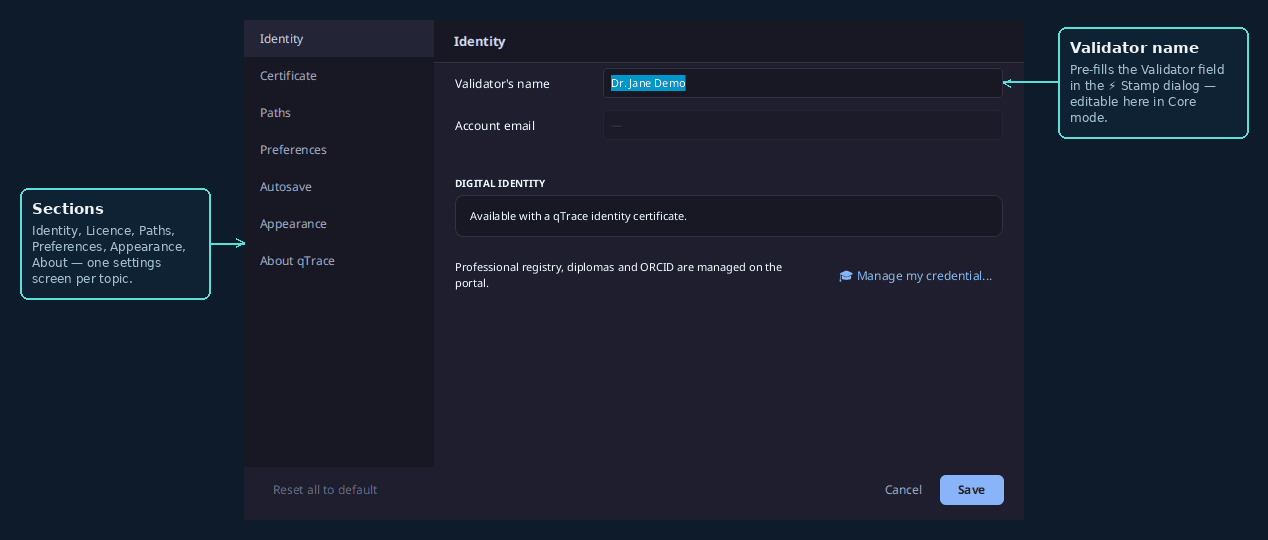
Identity — validator name (Core); on Compliance, a read-only Digital Identity card: ED25519 signing key, Polygon anchor (link to the block explorer), public badge. A "Manage my credentials →" link opens the portal (professional registry / diploma / ORCID).
Certificate — your identity certificate. It normally arrives through Extensions > QTrace > Help > Getting started… (sign in); load the .qtlicense certificate file here only for a QuPath that cannot reach qtrace.ca. Signed in to an account that holds no certificate, the status line reads “Signed in as {your name} — no identity certificate”, and the Identity section shows the account's name and email, locked (self-declared identity, not certified). The status line adds “If you get one on qtrace.ca, it arrives here on its own.”: the certificate installs without any action from you.
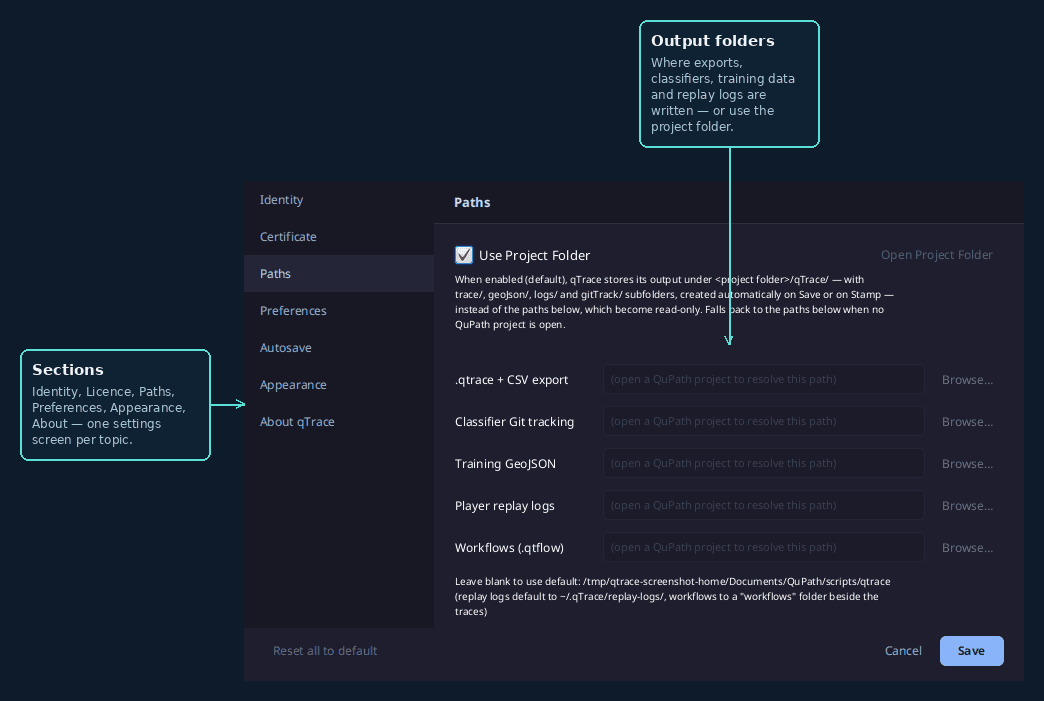
Paths — the Use Project Folder checkbox now sits at the top of the section, checked
by default: the 5 paths below become read-only and show the real resolved path under
<project>/qTrace/ (created automatically on Save or on Stamp):
- trace/ — .qtrace files + CSV export
- gitTrack/ — JSON copy of the classifiers used
- geoJson/ — training GeoJSON
- logs/ — Player replay logs
- workflow/ — workflows (.qtflow) composed in the Workflow Editor; this is where
Save workflow… offers to write and where Open .qtrace… starts when the
WorkflowEditor extension is present. Without Project Folder, field Workflows (.qtflow):
left blank, a workflows folder beside the traces.
If the project already has that folder under another case (qtrace/, QTRACE/, Trace/…),
qTrace reuses it instead of creating a second one: on Synology Drive, OneDrive or a
Windows/macOS disk, two names differing only by case otherwise produce …_CaseConflict
folders on every export.
Every part of qTrace follows these folders: saving and stamping .qtrace files, batch
export, classifier Git tracking, GeoJSON, the Dashboard and the version graph.
With no QuPath project open, the fields stay blank with an explanatory prompt; the
Dashboard then offers to open a project ("Open Project…" button) instead of showing
another folder. A capture made on an image opened outside any project is still saved to the
configured paths (the ones shown when unchecked), so no provenance is ever lost.
Unchecking it makes all 4 fields editable again (manual entry, the previous behaviour): every
part of qTrace then uses those paths, whether or not a project is open.
Project Git history (box checked): each time a session is saved (autosave, Stamp, batch
export, replay), qTrace makes a local Git commit of project.qpproj, scripts/,
classifiers/ and the whole qTrace/ folder (.qtrace, CSV, thumbnails, certificates,
GeoJSON, logs). Never the data/ folder (.qpdata) nor images. The repository is created at
the project root (.git folder), or reuses the one that already holds the project: only
qTrace's files go into these commits, anything the lab staged itself stays staged. Commit
author and committer = you: certified name + qtrace.ca account email when your certificate is
loaded (plus a qTrace-Validator-Key line with your public key), otherwise your contributor
name. If the project is shared, that email travels with its history. Each .qtrace session records the file's previous commit
(git.parent_commit). The old qTrace/gitTrack/.git repository is renamed
gitTrack/.git-legacy (kept, no longer used). Nothing is sent online: this is a local
history, not an integrity proof (that comes from the signed Stamp).
Network - how qTrace reaches qtrace.ca, file storage and its updates, useful in a hospital or a company.
- Proxy: Use this computer's proxy settings (default; the line below says what was found: QuPath's Java options, HTTPS_PROXY, Windows, macOS or GNOME settings, or an automatic configuration script that qTrace cannot run), No proxy, or Use this proxy with its address, its port and, if the proxy asks for them, a user name and password (Basic sign-in; Windows NTLM or Kerberos sign-in is not supported).
The password is kept in ~/.qTrace/qtrace-proxy.secret, readable by you alone, never in config.json.
- Certificates: Also trust the certificates installed on this computer (checked by default; this is where IT installs the root of its HTTPS inspection box), and Institution root certificate: the file IT gives (.pem, .crt, .cer, .der), of which qTrace keeps a copy.
The status line gives its name and expiry date, or warns when it is not a certificate authority.
Certificate verification is never turned off.
- Test connection to qtrace.ca: tries the qTrace server, file storage and the two GitHub update hosts with the settings on screen, even before Save, and says plainly what stands in the way (name not found, proxy unreachable or asking for a sign-in, host blocked, certificate not trusted with the name of its issuer).
- Copy the details for IT: copies the hosts to allow, the settings and the last test, to paste in a message to IT; the full sheet is [docs/it/network-sheet.md](../it/network-sheet.md).
Save refuses a manual proxy without an address or a valid port, and opens the Network section.
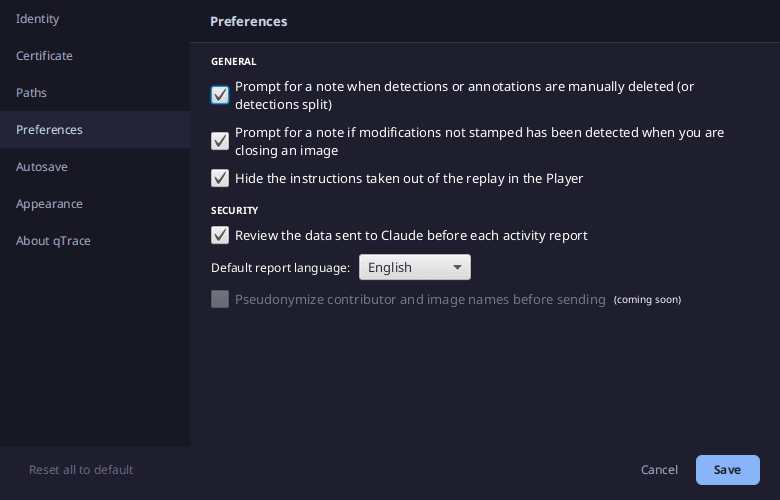
Preferences — includes an UPLOAD subsection and a SECURITY subsection (hover tooltips rather than permanent text). UPLOAD sets what the Upload brings of the Player's execution logs linked to the record it sends (proof of work on this workstation): Full (default — the whole logs, as written), Summary only (result, durations, step counts, without the step lines) or Off (no logs). Hide the instructions taken out of the replay in the Player (checked by default): instructions taken out in [⑃ Version(s)](08-graphe-de-version.md) are never run; checked, the Player does not list them; unchecked, it lists them greyed out.
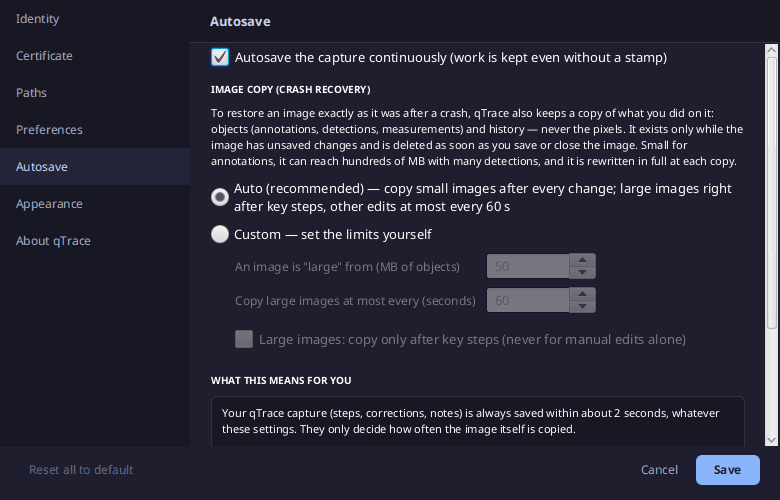
Autosave — continuous saving:
- Autosave the capture continuously (checked by default): a local draft written every few
seconds, an unstamped session in the .qtrace when an image is closed or switched without a
stamp, and crash recovery. Unchecked, nothing is written without a stamp and nothing can be
restored after a crash (previous behaviour).
- Image copy (crash recovery): to restore the image exactly, qTrace also copies its objects
and history (never the pixels) while it has unsaved changes. The copy is rewritten in full
each time and can weigh hundreds of MB with many detections, hence two modes:
- Auto (recommended): images under 50 MB of objects are copied after every change; larger
ones right after each key step (any QuPath command: detection, classifier, script,
measurements…; any batch of 10 objects or more added or deleted at once), and plain manual
edits at most every 60 s.
- Custom: set the "large image" threshold (5–5000 MB), the interval (10–3600 s) and
Large images: copy only after key steps (no copy at all for plain manual edits on a
large image).
- What this means for you: a box sums up the consequences of the chosen settings, live —
the qTrace capture (steps, corrections, notes) is always saved within ~2 s; what a crash can
lose is the manual edits made since the image was last copied (at most the interval, or since
the last key step), to redo by hand. Lower threshold / shorter interval = safer, more disk
writes; the reverse = fewer writes, more to redo.
🖥️ Daily Workflow
qTrace works passively in the background — you don't change how you use QuPath. Open the panel (Extensions > QTrace > Panel) and run your analysis as usual. The diagram below is a QuPath analysis best practice, end to end — qTrace records every step of it automatically.
Your capture is saved continuously as you work and survives a crash: reopen the image and Recover unsaved work brings it back. Switch images or quit without stamping, and that work is kept in the .qtrace as an unstamped session instead of being lost.
When you're done, save your work in QuPath (File › Save — the image's pixels are never modified, only the work on top of them), then Validate & Stamp — Case ID, scope, confidence, notes, and your signing passphrase if you're on Compliance — writes the .qtrace sidecar next to your image: a JSON record of the session, what was done, when, by whom, and with which parameters — everything a reviewer needs, without re-running anything.
⚡ Compliance & Enterprise Features
Available once a Compliance license is active.
Get certified (optional upgrade)
Every account captures, stamps, uploads and shares records; without an identity certificate they are marked not certified. A certificate adds certified identity, passphrase-protected signed stamps and chain-of-custody. Core works fully without it, replay included.
- In QuPath, click Sign in or create an account (Getting started or the panel).
- On qtrace.ca, complete identity verification (KYC) and choose your passphrase.
- The certificate arrives in QuPath on its own: accept Quit QuPath Now when it offers.
- qTrace installs the Compliance module at restart. Your name appears in green (✓) in the panel; new stamps are certified.
- To certify work first stamped as not certified, open it and stamp it again: the new record points to the first one.
Activity report
Printable, per-contributor audit summaries for FDA / GLP review.
Cloud sync
Push a .qtrace and its classifiers to your portal workspace for certified storage.
How verification works — for QA & Compliance officers▾
Even if qTrace disappears tomorrow, your .qtrace file stays independently verifiable with tools whose source code ships in your exit bundle — verification doesn't depend on trusting our servers.
Offline verification — the qtrace-verify CLI, shipped with its source code in the verifier/ folder of every exit bundle, checks a certificate or a public proof without any network access:
pip install ./verifier

qtrace-verify proof   qtc_<id>.proof.json
qtrace-verify check --case-dir path/to/case_<id>/ --qpdata path/to/data.qpdata
qtrace-verify stamp   --case-dir path/to/case_<id>/
qtrace-verify upgrade --case-dir path/to/case_<id>/
| Verdict | Meaning |
|---|---|
| GREEN | Signature valid · data matches · chain intact · Bitcoin anchor confirmed |
| YELLOW | Signature valid · chain intact · Bitcoin confirmation still pending |
| RED | Signature invalid, data tampered, chain broken, or validator revoked |
Online verification — anyone can check a certificate at qtrace.ca/verify.
Timestamp anchoring — certificates pushed to your Cloud Workspace are anchored to the Bitcoin blockchain via OpenTimestamps, giving independent proof that the record existed at that time. Before anchoring, timestamps come from the workstation clock.
ActionLogger. Once a session is stamped, any later change to it is detected; unstamped sessions are not tamper-evident.For developers — .qtrace format & QuPath hooks▾
A .qtrace file is JSON containing: image metadata, session info (user, machine, qTrace/QuPath version), the validation stamp, workflow step and correction counts, git commit info, project info, contributor info, and any alignment/registration data.
qTrace hooks into QuPath's own event system rather than polling — ActionLogger subscribes to QuPath's WorkflowListener and watches for classifier changes, so every recorded step reflects a real QuPath event, not a guess.
Full build-from-source instructions, the Core/Compliance architecture, and the complete security model are documented in the GitHub README.
❓ FAQ & Troubleshooting
QuPath doesn't show the qTrace menu after install
Double-check qtrace-loader.jar was copied to the correct extensions folder for your OS (see Getting Started above — or Edit > Preferences > Extensions directory in QuPath), then restart QuPath completely. If QuPath says "Old qTrace files are still loaded", delete the old qtrace-*.jar files it lists and restart.
Where are my exported files stored?
Alongside your image: the .qtrace sidecar, a Groovy replay script under scripts/validated/, and a cumulative master_validation_log.csv. Compliance also writes a .qtcert certificate under case_<id>/certs/.
Are there limits on very large or complex images?
A few known edge cases: alignment landmarks aren't capturable after you click Apply (place Point annotations first for a visual trail); Advanced Options of the Train Pixel Classifier (max samples, seed, boundary strategy) aren't serialized by QuPath itself; and Warpy reference-image selection can't be automated.
Ready to get started?
Download qTrace Core (free, open-source) and create a free account — certified identity and chain-of-custody come with an identity certificate.